

Code Visualizer Tool: See How a Webpage Is Built
What is the Code Visualizer tool?
The code visualizer tool lets you inspect how websites are actually built, HTML, CSS, JavaScript- directly on the page itself. Instead of jumping between DevTools panels and wrestling with inspector tabs, you see the layers visually overlaid on the webpage in real time. It's like giving your browser an X-ray for code.
Built by SEO specialist Naomi Vyas for SEOs, developers, designers, and curious website owners.
How Do You View a Website Without JavaScript?
Most websites depend heavily on JavaScript to function. But search engines (including AI crawlers for GEO) don't always wait for all JavaScript to execute. So seeing what a page looks like before JavaScript runs is critical.
The short answer: Use a No-JS Preview feature. This shows you exactly what content is available in the initial HTML and what's missing until JavaScript loads.
Why it matters for SEO:
Google and AI search systems crawl content differently
If your key content relies on JS, crawlers may miss it
Testing No-JS Preview reveals rendering gaps
With Code Visualizer:
Click the "No-JS Preview" toggle to see your page skeleton (pure HTML, no JavaScript execution)
Compare it side-by-side with the fully rendered version
Identify content gaps instantly
Fix rendering issues before they hurt search visibility
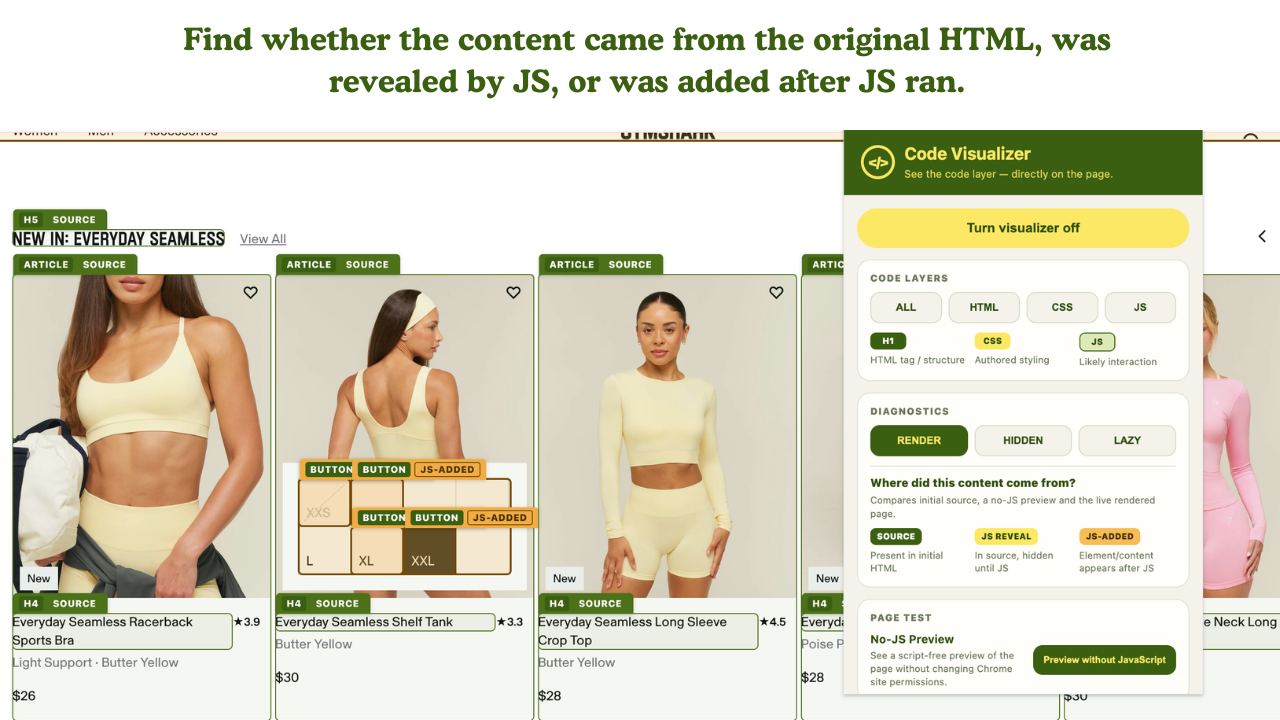
What Does "JS Reveal" Mean?
JS Reveal = Content that exists in the HTML source but hidden until JavaScript makes it visible.
Example: An FAQ section marked with display: none in CSS, then revealed when a user clicks. That content is already in the initial page load, the HTML is there, but JavaScript unhides it.
Why this matters:
Search engines can often find JS Reveal content (it's in the source)
AI search systems may or may not wait for the reveal
GEO crawlers have limited JavaScript execution
If content is critical, you want it visible pre-JS when possible
With Code Visualizer:
Toggle on "JS Reveal" layer to highlight all hidden content waiting for JavaScript
See exactly what's being hidden from the initial render
Audit whether your key content should be visible immediately or safely hidden
Helps SEOs make informed decisions: Should this accordion be expanded by default? Should this section be visible on first load?
What Does "JS Added" Mean? (JavaScript Added Content)
JS Added = Content that doesn't exist in the original HTML. JavaScript creates and inserts it after the page loads.
Example: A product recommendation carousel loaded dynamically via JavaScript, or infinite scroll results added as users scroll.
Why this matters:
Search engines struggle with JS Added content
Many crawlers won't wait long enough to see it
AI search systems have limited JS execution
Critical content shouldn't rely on JS Added
With Code Visualizer:
Toggle on "JS Added" layer to see all dynamically injected content
Instantly spot which elements appeared after page load
Audit whether important content is being added (not ideal for SEO)
Compare with SOURCE and JS REVEAL content to understand page priority
Red flag example:
Your main product description is JS Added → Poor crawlability
Your breadcrumb navigation is JS Added → May not be indexed
Your key heading is JS Added → AI search won't cite it.

How Do You Inspect Website Structure Visually?
Traditional method: Right-click → Inspect → Hunt through the Elements panel → Adjust filters → Open the Network tab → Cross-reference with Sources.
Frustration level: High. Time to insight: 5+ minutes.
Visual inspection with a code visualizer:
See overlays directly on the page
Multiple diagnostic layers (HTML, CSS, JavaScript behavior, lazy loading, hidden content)
Toggle layers on/off as needed
No DevTools panel juggling
Time to insight: Under 30 seconds
How To Use Code Visualizer Tool: Step-By-Step
Install & Activate
Add Code Visualizer from the Chrome Web Store
Visit any website
Click the extension icon in your toolbar
Toggle diagnostic layers on/off
For SEO Audits
Check rendering gaps:
Enable "No-JS Preview" to see initial content load
Compare against the full JavaScript-rendered page
Identify critical content that needs pre-JS visibility
Spot hidden content:
Enable "Hidden/Invisible Content" layer
Look for off-screen text, zero-opacity elements, CSS-hidden sections
Audit whether hidden content is intentional (accordions, tabs) or accidental (cloaking)
Find lazy-loaded images:
Enable "Lazy Loading" layer
Check that alt text is present in source (not added via JS)
Verify Core Web Vitals impact
Understand JavaScript behavior:
Enable "JS Reveal" and "JS Added" together
See what content is waiting to be revealed vs. what's injected fresh
Decide whether to restructure for better crawlability
For GEO Optimization
Test AI search visibility:
Run No-JS Preview: This simulates how AI crawlers with limited JS execution see your page
Check that your main content, heading, and key product info are SOURCE or JS REVEAL (not JS Added)
Audit whether your page looks coherent without JavaScript running
Spot ranking issues:
JS Added meta descriptions → Not indexed correctly
JS Added Schema markup → Rich snippets won't appear
JS Reveal key content → May or may not rank, depending on crawler JS support
Code Visualizer vs. Chrome DevTools: What's The Difference?
| Feature | Code Visualizer | Chrome DevTools |
|---|---|---|
| Setup time | Instant (one click) | Find element → Open DevTools → Jump panels |
| Visual overlay | Yes, directly on page | No, separate panel |
| No-JS Preview | Yes, built-in toggle | No, requires manual browser settings or another tool |
| JS Reveal detection | Yes, dedicated layer | Manual inspection required |
| JS Added detection | Yes, dedicated layer | Manual comparison needed |
| Lazy loading | Yes, visual highlight | Requires inspection and scrolling |
| Multiple diagnostic layers | Yes, toggle multiple layers | Requires switching between tools and panels |
| Platform | Desktop Chrome extension | Desktop Chrome DevTools |
| Learning curve | Visual and intuitive | More technical, with multiple panels and concepts |
Does JavaScript-Rendered Content Get Indexed?
Short answer: Sometimes. It depends on the crawler, timeout limits, and JavaScript complexity.
Google: Can render JavaScript, but not all content, and not instantly. Heavy JavaScript slows crawling.
Bing: Limited JavaScript rendering support.
AI Search (GEO): Limited JavaScript execution. If your content is JS Added or deeply nested in JavaScript, don't count on it.
What Code Visualizer helps you decide:
Use No-JS Preview to test: Is my critical content visible without JavaScript?
If no → Move it to SOURCE or JS REVEAL
If yes → You're safe; JavaScript enhancements are OK
Start Using Code Visualizer Today
Add the Code Visualizer extension from the Chrome Web Store. No installation hassles, no DevTools deep dives—just visual inspection, directly on the page.
Perfect for:
Quick page audits (under 2 minutes)
Rendering issue diagnosis
GEO/AI search optimization
Content structure verification
Crawlability testing
Stop digging through DevTools. See your code, instantly.